Miseria Controls and Settings
Mouse-only comfort, FPS caps that save your CPU, Quit-to-save discipline, Steam Cloud, and Deck battery reality.
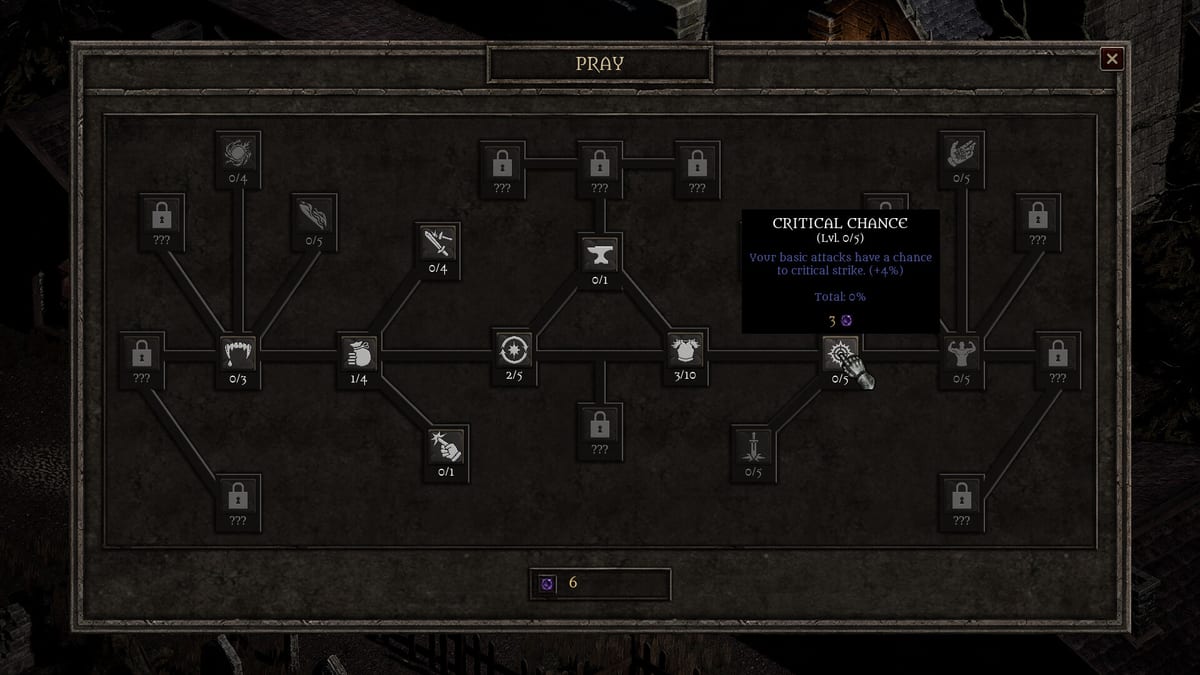
Miseria is a mouse-driven idle incremental—your party auto-fights while you route floors, open town, and spend currencies. The wrong settings turn that loop into fan noise, lost progress, or a Steam Deck that dies mid-farm. This guide covers controls, FPS limits, save behavior (Quit vs autosave history), Steam Cloud, language options, Deck/CPU notes, and the accessibility tags Steam lists for the game. Use it beside Getting Started in Miseria on day one and Auto-Descend Idle Guide for Miseria when you leave the PC running. Return to the Guides Hub for every walkthrough.
Control model: mouse-first, not twitch
Steam marks Miseria with a Mouse Only Option and Playable without Timed Input. That matches the design: combat is automatic; you are not perfect-dodging bullets on a timer. Expect point-and-click (or trackpad) navigation for menus, town NPCs, Reborn confirmation, Church purchases, and UI toggles like auto-descend.
Practical implications:
- You can play one-handed at a desk while watching something else—once gold magnet/auto-collect exists (Gold and QoL Tips for Miseria).
- There is no competitive ranked ladder that punishes high ping. Latency is irrelevant; save integrity and thermals matter more.
- Controllers may work through Steam Input on Deck, but the store-facing promise is mouse-only comfort. If a binding feels missing, prefer mouse/trackpad for shop and prestige confirmations so you do not mis-click a Reborn.
FPS limit — the setting demo players learned the hard way
Community notes from the demo era are blunt: FPS can default uncapped, and uncapped idle games love to spin your CPU/GPU while a static town screen barely changes. Full release players should still open settings and cap the framerate to something sensible for an auto-battler (common comfort bands: 30, 60, or a VSync-style match to your display).
Why this matters for Miseria specifically:
- Long auto-descend sessions are the point of the genre. An uncapped render loop can heat a laptop, drain a Deck battery, and make Mixed-review “performance” complaints self-inflicted.
- Achievement grinds for Keep Descending milestones are multi-hour affairs. Cap FPS before you leave a farm overnight.
- Minimum store specs already ask for a GTX 1050 Ti-class GPU and 8 GB RAM; uncapped frames are not “extra quality” in an idle RPG—they are wasted watts.
If the menu labels the option as FPS limit, frame cap, or VSync, turn it on. If you cannot find it after a patch, check the Updates Hub and Steam discussion pins—demo hotfixes already shuffled menu clarity once.
Saving: Quit button, autosave history, Alt+F4 risk
Use the Quit button to save. That is the reliable habit players should build from the first session. Later builds improved autosave frequency (called out in the April 2026 demo update notes that also shrank install size and improved menu clarity), but treating Quit as your commit action still prevents “I closed the window and my Prestige Points vanished” horror stories.
Demo-era warning still worth knowing: a May 5, 2026 hotfix fixed Prestige Points / Dark Blessings not saving correctly for some players. The design intent—blessings and Church upgrades like Tempered Steel persist across Reborns—was always cumulative; the bug was persistence failing to write. After any big Reborn + Church spend, Quit once, relaunch, and confirm Church levels before you celebrate.
Avoid Alt+F4 / force-kill as your exit method. Force-closing can skip the save path the Quit flow uses. If the game hitch-locks, wait for autosave intervals when possible, then Quit cleanly.
Session checklist after important moments:
- Buy Church nodes with Dark Blessings (How to Reborn in Miseria).
- Confirm UI shows the purchase (level 1 on a node that started at 0 is success, not a wipe).
- Hit Quit.
- Relaunch if you are paranoid after a patch week.
Steam Cloud
Miseria supports Steam Cloud. That lets you move between a desktop and a laptop (or Deck) without USB save juggling—when Cloud sync finishes. Good habits:
- Exit to desktop with Quit so the local save is fresh before Steam uploads.
- On a second device, wait for the cloud sync icon to settle before launching.
- After conflicts (“cloud save vs local”), pick the slot that still has your Church permanence. Losing a Reborn’s blessings hurts more than losing one floor of gold.
Cloud is not a substitute for Quit discipline; it syncs whatever the client last wrote.
Language settings
The Steam store lists a wide interface language set (English, French, German, Spanish, Portuguese-Brazil, Japanese, Korean, Russian, Simplified Chinese, Italian, and more as shown on the store table). In-game language usually follows Steam’s game language or an options dropdown—set it before you memorize menu positions.
This wiki’s pages are localized separately; changing Miseria’s language does not change which wiki locale you are reading. If a tooltip and a wiki sentence disagree after a patch, trust the build you are running and file the difference under Updates.
Steam Deck and CPU notes
Steam Deck: Playable, but demo-era reports called out high battery drain. That pairs badly with uncapped FPS and overnight auto-descend. Recommendations:
- Cap FPS aggressively (30 is fine for an idle auto-battler).
- Lower TDP in Quick Access if you only need the party to keep swinging.
- Prefer plugged-in sessions for long Keep Descending or completion pushes (How to Complete Miseria).
- Use trackpads/mouse mode for Church and Reborn confirms.
CPU/GPU on desktop: If fans ramp in town with nothing happening, you almost certainly need the frame cap. Idle games that present 3D or busy VFX can still schedule work every frame; Miseria’s store tags include performance-sensitive hardware minimums for a reason.
Accessibility and store feature tags
Steam lists helpful feature flags for Miseria. Read them as design promises, not as a full accessibility audit:
- Mouse Only Option — primary control path without mandatory gamepad.
- Playable without Timed Input — no rhythm/QTE tax on the core loop.
- Custom Volume Controls — separate audio levers when the mix is loud during long AFK.
- Adjustable Difficulty — use it if a setting exists to soften walls while you learn soft caps (~20) and Reborn timing.
- Stereo Sound — standard stereo output; pair with custom volumes.
- Steam Cloud — cross-device saves as above.
- Single-player / Family Sharing as listed on the store—no online co-op requirement.
If you need larger UI, check in-game options after the demo’s “UI clarity” pass; the April 2026 demo update explicitly called out menu and readability improvements alongside autosave frequency and characters facing enemies.
Settings that support the rest of the wiki
- Auto-descend + magnet: Settings get you stable FPS; Church QoL gets you true idle—see gold tips and the auto-descend guide.
- Achievement hunting: Cap FPS and Quit after milestone nights so achievements progress is not lost to a crash.
- Strange Plant nights: You may alt-tab while hunting—How to Get the Strange Plant in Miseria—so background CPU cost matters.
- Floor 19 / ending pushes: Long sessions; Deck users should plug in (How to Reach Floor 19 in Miseria).
Quick setup recipe (first launch)
- Set language.
- Cap FPS / enable VSync-style limit.
- Set volumes comfortable for long idle.
- Note where Quit lives; practice one clean exit.
- Confirm Steam Cloud is enabled for the game in Steam’s Properties → General.
- Start the descent with How to Play Miseria.
Miseria’s best “control skill” is not aiming—it is protecting the save and not melting hardware while the party fights for you. Cap the frame rate, Quit after Church spends, trust Steam Cloud only after a clean exit, and treat Deck battery reports as a prompt to lower FPS and plug in. Do that, and the Mixed Steam reception’s technical complaints become much less likely to be the reason you bounce.
Frequently Asked Questions
Quick answers to the most common questions.
Does Miseria support mouse-only play?
Yes. Steam lists a Mouse Only Option and Playable without Timed Input. Combat is automatic; you mainly click menus, town, and routing toggles.
Why should I cap FPS in Miseria?
Uncapped framerate was a demo-era pain point that heats CPUs/GPUs and drains Steam Deck batteries during idle. Cap FPS for long auto-descend sessions.
How do I save progress in Miseria?
Use the Quit button to save. Later builds improved autosave frequency, but Quit remains the safe habit. Avoid Alt+F4, which can skip the save path.
Does Miseria use Steam Cloud?
Yes. Quit cleanly so the local save is fresh, wait for sync on other devices, and after big Reborns confirm Church upgrades still show.
Is Miseria okay on Steam Deck?
It is playable, but demo feedback reported high battery drain. Cap FPS, lower TDP if needed, and plug in for overnight idle farms.
What accessibility features does the Steam page list?
Custom Volume Controls, Adjustable Difficulty, Mouse Only Option, Playable without Timed Input, Stereo Sound, and Steam Cloud, plus single-player Family Sharing as shown on the store.